
How to install Portainer Lightweight Docker Management UI Installation on Ubuntu 20.04 || 18.04 || 16.04 LTS
Portainer is a universal container management tool. It works with Kubernetes, Docker, Docker Swarm, and Azure ACI. It allows you to manage containers without needing to know platform-specific code....
Key Architecture Takeaways
- ›Point 1: Hypervisor & container orchestration blueprint for How to install Portainer Lightweight Docker Management UI Installation on Ubuntu 20.04 || 18.04 || 16.04 LTS.
- ›Point 2: Architecture covers resource isolation, networking bridges, and high availability.
- ›Point 3: Optimized for Proxmox VE 8, modern Docker 27+, and kernel cgroups v2.
High Availability Cluster Recommendation
In modern virtualized datacenters (Proxmox VE 8.x), ensure guest configurations utilize VirtIO SCSI Single controllers with IOThread enabled, and isolate cluster corosync traffic onto dedicated 10GbE VLANs.
Portainer is a universal container management tool. It works with Kubernetes, Docker, Docker Swarm, and Azure ACI. It allows you to manage containers without needing to know platform-specific code. It has a robust web UI
If you're looking for an open-source and simple to use Docker management. Portainer is a great place to start. Portainer Community Edition is a completely free, powerful, open-source management toolset that allows you to easily build, manage, and maintain Docker environments. It supports Windows, Linux, and Mac OS.
Step 1. Install Docker
If you always want to automatically get the latest version of Docker on Ubuntu, you must add its official repository to the Ubuntu system. To do that, run the commands below to install prerequisite packages:
Step1.1- Update your Package List and install prerequisite packages
sudo apt update
sudo apt-get install apt-transport-https ca-certificates curl gnupg-agent software-properties-common
Step 1.2- Add Docker GPG Key
Next, run the commands below to download and install Docker's official GPG key. The key is used to validate packages installed from Docker's repository making sure they're trusted.
curl -fsSL https://download.docker.com/linux/ubuntu/gpg | sudo apt-key add -Now that the official GPG key is installed,
Step 1.3- Add Docker Repository
run the commands below to add its stable repository to Ubuntu. To add the nightly or test repository, add the word nightly or test (or both) after the word stable in the commands below.
sudo add-apt-repository "deb [arch=amd64] https://download.docker.com/linux/ubuntu $(lsb_release -cs) stable"After this command, Docker's official repository should be installed on Ubuntu.
Step 1.4- Install Docker Latest Version
Run the commands below. The command below will always install the highest possible version:
sudo apt-get install docker-ce docker-ce-cli containerd.ioThis will install Docker software on Ubuntu.

Step 2. Add user Account to Docker Group
Add your account, for most cases it will be ubuntu, to Docker group and restart:
sudo usermod -aG docker $USERReboot your instance:
sudo rebootStep 3. Install Docker Compose
On Ubuntu Linux, you can download the Docker Compose binary from the Compose repository release page on GitHub. To install it, run the commands below to download version 1.26.0. As of this writing, this was the current version.
sudo curl -L "https://github.com/docker/compose/releases/download/1.26.0/docker-compose-$(uname -s)-$(uname -m)" -o /usr/local/bin/docker-compose
After downloading it, run the commands below to apply executable permissions to the binary file and create a symbolic link to /usr/binary
sudo chmod +x /usr/local/bin/docker-compose
sudo ln -s /usr/local/bin/docker-compose /usr/bin/docker-compose
Now, Docker Compose should work. To test it, we will run the command below:
docker-compose --versionYou should see similar output as below:

Step 4: Setup Portainer
Now that Docker and Docker Composer are installed, follow the steps below to get Portainer setup. You can use the Docker command to deploy the Portainer Server
To get the server installed, run the commands below.
cd ~/
docker volume create portainer_data
docker run -d -p 8000:8000 -p 9000:9000 --name=portainer --restart=always -v /var/run/docker.sock:/var/run/docker.sock -v portainer_data:/data portainer/portainer
You'll just need to access port 9000 of the Docker engine where Portainer is running using your browser.
Note: the -v /var/run/docker.sock:/var/run/docker.sock option can be used in Linux environments only.
After a successful pull, you should get a similar message as below:

At this point, all you need to do is access the Portainer portal to manage Docker. Open your web browser and browse to the server's hostname or IP address followed by port #9000
http://localhost:9000 or http://<Your IP>:9000 You should get a Portainer login page to create an admin password.

Submit a new password.
Now you see some options to choose the environment you want to manage.

Since we installed Docker on the same machine, select to connect and manage Docker locally.
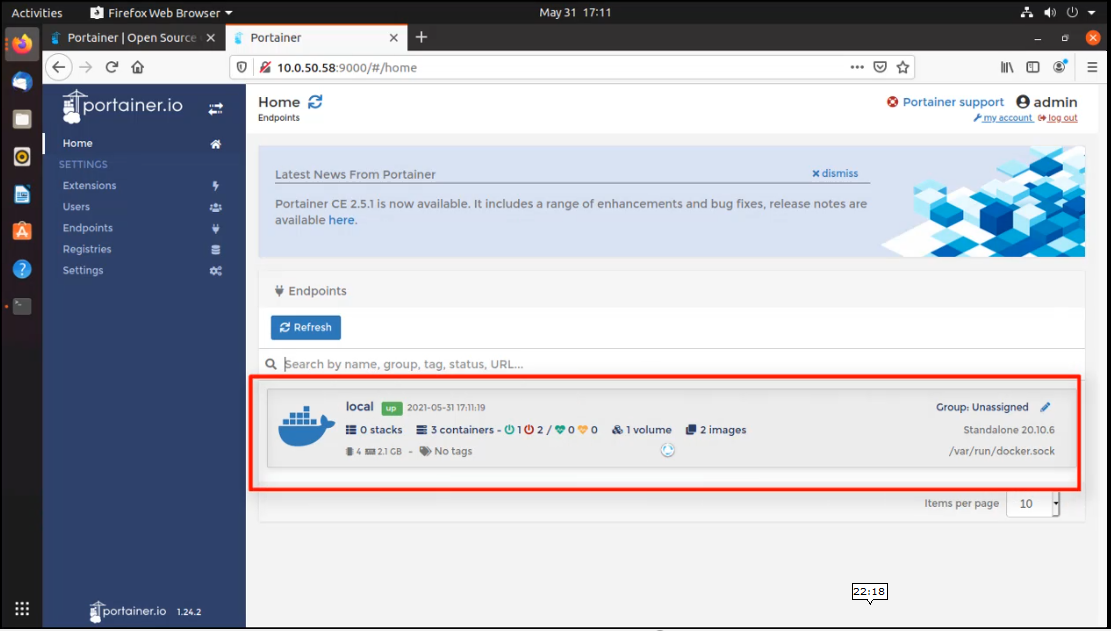
You'll be directed to the Portainer dashboard where you can start managing Docker. Browse around and begin setting up your environment. If you had Docker installed on a remote computer, you'll have to install the Portainer agent on the server.
Conclusion: Well, At the end we learned how to install Portainer Docker manager on Ubuntu 20.04 | 18.04 | 16.04.