
How to Use MS Access as a Front-End of MySQL
We all know that the Microsoft Office is one of the most popular Office Package because of its interface and user-friendly tools. Also, we all know that the MS Access is very popular and handy RDBM...
Key Architecture Takeaways
- ›Point 1: Full-stack architecture blueprint: How to Use MS Access as a Front-End of MySQL.
- ›Point 2: Covers MVC separation of concerns, routing pipelines, and database abstraction.
- ›Point 3: Modern ecosystems: Laravel 11/PHP 8.3, React 19, and Node.js LTS runtimes.
Modern Framework Landscape (2026)
Web engineering patterns have evolved: Laravel now utilizes PHP 8.2+ typed properties, Vite asset bundling, and strict Eloquent typing, while Node.js LTS supports native fetch and ESM modules out of the box.
We all know that the Microsoft Office is one of the most popular Office Package because of its interface and user-friendly tools. Also, we all know that the MS Access is very popular and handy RDBMS. Query designing and database management tools in access provide a very easy approach to users.
You can use Microsoft Access as a front end to MySQL by linking tables within your Microsoft Access database to tables that exist within your MySQL database. When a query is requested on a table within Access, ODBC is used to execute the queries on the MySQL database.
See on YouTube:
Steps to connect a remote MySQL database using MS Access:
Step 1: --Download MySQL Connector ODBC
Click on the following link to download MySQL Connector https://dev.mysql.com/downloads/connector/odbc/
 Mysql connector odbc download page
Step 2: --Install MySQL Connector ODBC
To install MySQL Connector ODBC follow the installation steps.
1)Run Installer and Click on Next
 Mysql-connector-odbc-install1.png
2)Click On Accept and then next

3)Click on typical and then next

4)Finally, click on Finish button.

Step 3: --Setup ODBC Data Source
1)Click on start button and type at search bar "odbc"

2) Under "User DSN" Click on Add button

3) Select MySQL ODBC 5.3 Unicode Driver and click on Finish button

4) Now fill your remote database information and credential.
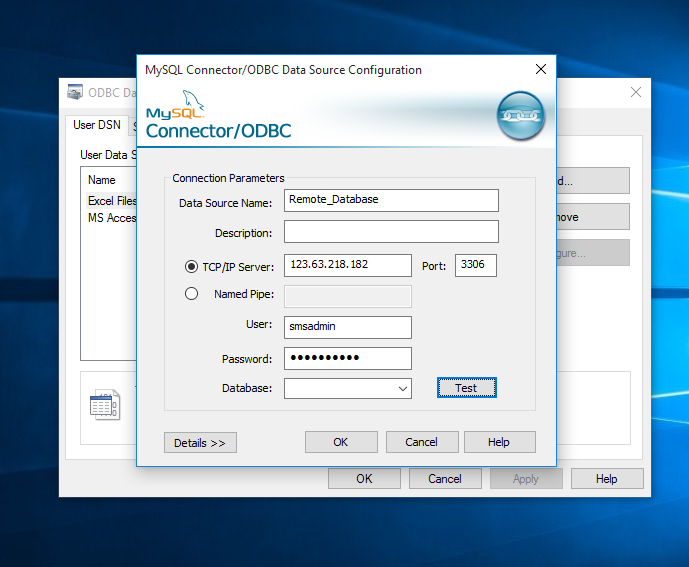
5)After filling information of your remote database click on test button to check the connection.
<blockquote>Note: Root user in MySQL blocked by default for remote access. if your are trying through root then you got an error "Access denied". Still want to login with root user then unblock root user then try.</blockquote>
 odbc data source5
5) If your database connected successfully then select a database for operation.

6) Now finally click on ok button. after that, you see your remote source connection under user DSN.

Step 3: --Link Database tables inside Access
1)Open Access and create a database. Create access database
2)Click on ODBC Database under external data tab.

2)Select link table then click on the ok button.

3)Select your remote database source under Machin Data Source.

4)Select Table which you want to link then click on ok button.

5)Now your remote table has been linked and ready to insert, delete and other operations.
